Rechercher dans ce blog

Saturday, July 3, 2021

Windows 11 is the latest shot fired in the growing battle between Microsoft and Apple - CNET

Windows 11 logo on a phone screen

Windows 11 will be a free upgrade when it launches later this year.

Getty Images

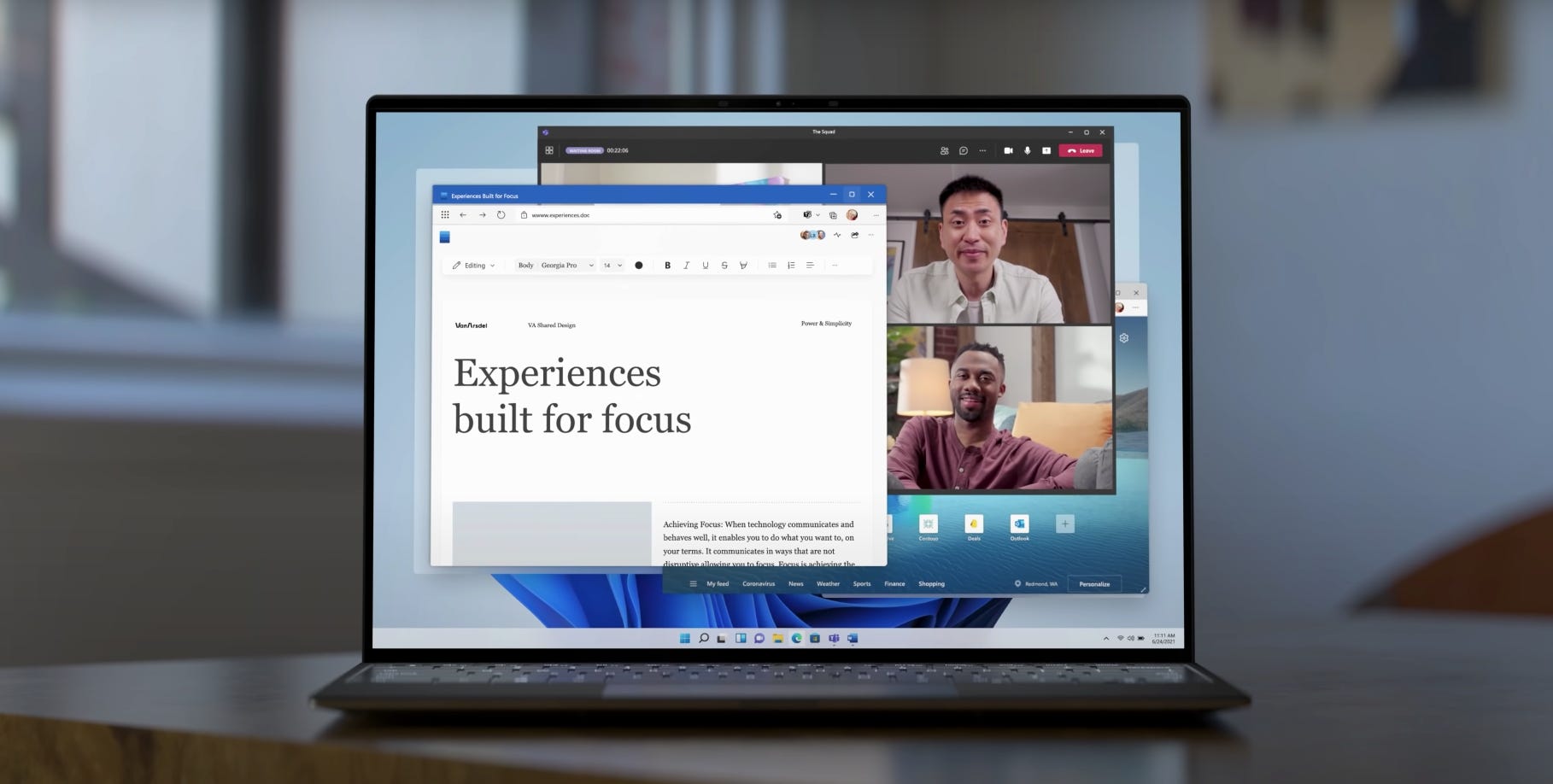
At first blush, Microsoft's Windows 11 looks to be a solid update to the operating system software that powers most of the world's PCs. Its most dramatic change is its new streamlined design that's similar to smartphones and tablets powered by Apple's iOS and Google's Android. Microsoft's also added features meant to help people navigate the new ways we've all learned to work during the coronavirus pandemic. They include built-in video chat software, technology to make video games look better, and more modern-looking buttons and windows for controlling apps and sorting documents.

But Microsoft believes its most important selling point may be what it doesn't do. After announcing Windows 11 last week, Microsoft CEO Satya Nadella said his company is building its technology to work with as many products as possible, including software for competing Google Android-powered smartphones.

"Today, the world needs a more open platform -- one that allows apps to become platforms in their own right," he said. "Windows is a platform where things that are bigger than Windows can be born."

He pushed this point by inviting Google to bring its app store onto Windows. He also told developers they're now allowed to sell programs on the Microsoft Store for little to no commission, a stark shift from Apple's and Google's 15% minimum take that's led to lawsuits and antitrust probes around the world. And he said he'd welcome Apple's FaceTime and other technologies on Windows 11 and in the Microsoft Store.

"We want to remove the barriers that too often exist today and provide real choice and connection," he said. "Operating systems and devices should mold to our needs, not the other way around."
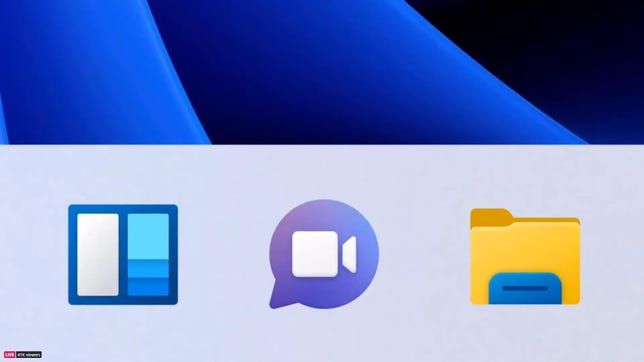
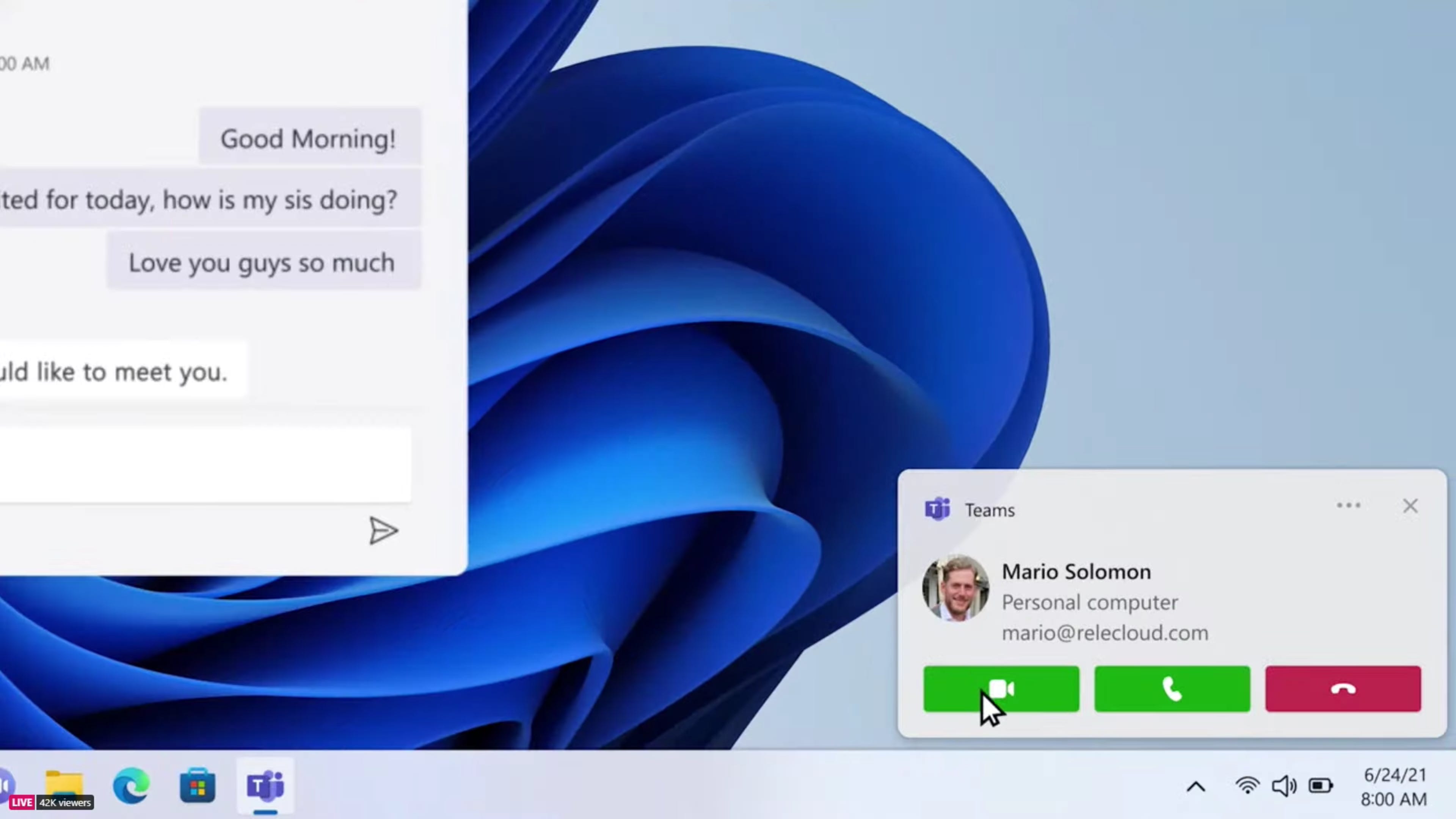
windows-11-check-out-the-teams-chat-feature-now-on-all-devices-mp4-00-00-11-14-still001

Microsoft is building its Teams video chat into Windows 11.

Microsoft

Microsoft's move with Windows 11 marks the latest in a sea change for the world's most highly valued software company. Two decades ago, Microsoft's attempts to crush competitors through its Windows software led a federal judge to declare it a monopoly. Microsoft's sharp-elbowed tactics and problem-prone software made it so reviled that people across the tech landscape shorthanded the company as M$ in chatrooms for what they saw as the company putting profit before the needs of people using its products.

Competitors joined in too. In the early 2000s, Google marketed its nascent search engine with the corporate ethos "Don't be Evil." And when Apple began formulating its "Get a Mac" campaign to help market its computers in 2005, it cast the Microsoft-powered PC as a bumbling and arrogant fool.

"The fact is you're selling like hotcakes now, and I've got to get my message out, so I'm doing a little buzz marketing for good old PC, the only computer you'll ever need," said the character PC, played by comedian John Hodgman, who then holds up signs saying "Amazing!" and "Totally cool!"

But things have changed since then. Google dropped its famous "Don't be evil" corporate mantra in 2015, opting instead for "Do the right thing." (Perhaps not coincidentally, the search giant is now facing antitrust scrutiny itself.) And Apple's controlling approach to the iPhone and its App Store have fueled lawsuits and government investigations in Europe and the US, fueled by complaints from major partners such as Tinder dating app maker IAC, music service Spotify and Fortnite developer Epic Games.

Read more: Windows 11: These are the best new features, and how to use them

Meanwhile, Nadella's been instituting changes at Microsoft since he was named CEO in 2014. He's pushed Microsoft to soften its approach with partners, competitors and even within its own divisions. It's about "the renaissance as much as about just sort of fixing something that's broken," Nadella told CNET in 2018.

Now, with Windows 11, Microsoft sees an opportunity to stand out from the crowd, rather than merely compete. And it'll be coming quick. Microsoft's planning to launch Windows 11 later this year, after a public beta test period this summer. Rumors suggest it'll land in October, around the same time Apple releases its free annual iPhone, iPad and Mac software updates as well.

"Now is the time," said Maribel Lopez, an analyst at Lopez Research. For a long time, Nadella has told developers that Microsoft is more open, easier to develop on and, with hundreds of millions of PCs sold every year, still a platform with opportunity. Even Microsoft's biggest hurdle -- the lack of a smartphone operating system -- is fading as mobile chips begin to power more PCs and the lines blur further.

That's not to say there's an easy road ahead for Microsoft. Though the company is making its single operating system more accessible to developers, Apple boasts two popular platforms in iOS and MacOS.

"You can't take Apple lightly," Lopez said, noting that there's a "war" going on for the future of tech. 

The next Windows

Windows 11 has a lot of smartphone- and tablet-inspired features.

Microsoft

In the 1990s, when people were buying their first desktops and logging onto the internet for the first time, Microsoft's stated corporate mission was to put "a computer on every desk and in every home." By 2015, it had largely succeeded -- and that groundwork even helped put a computer in everyone's pockets as well. (Despite Microsoft's best efforts, though, the devices didn't have a Windows logo on them).

So what do you do next? Nadella decided he wanted Microsoft to "empower every person and every organization on the planet to achieve more." That thinking ended Microsoft's obsession with Windows, solidifying it more as a company whose products help other company's products run.

But the Microsoft of old didn't entirely go away. Analysts believe Nadella's broadsides against Apple during his Windows 11 launch speech weren't just about knocking Microsoft's biggest frenemy. His tone wasn't jovial, nor was he dismissive like former CEO Steve Ballmer when Apple co-founder Steve Jobs first showed off the iPhone in 2007. Nadella was serious.

"He's attempting to pierce the veil," said Patrick Moorhead, an analyst at Moor Insights & Strategy, referring to Apple's position as the innovative cool kid in the tech industry. "How many opportunities do you have to pierce the veil?"

Moorhead noted that Microsoft's put a lot of effort into making sure its Office productivity apps, Teams chat software and other programs run well on iPhones, iPads and Macs. But Apple's barely updated iTunes on Windows over the years, and it hasn't even made apps like FaceTime available to download.

Microsoft declined to make Nadella available for an interview to discuss the motivations behind his speech. Whatever his reasons, Nadella's move showed that beneath Microsoft's cool-by-being-uncool veneer, it still has that monopoly-making cutthroat business sense.

"I can see why they envy Apple -- everyone bows down to that company like it's a religious talisman," said Endpoint Technologies Associates analyst Roger Kay.

Read more: Windows 11: All the big differences from Windows 10

But attacking Apple may not be enough to change people's perceptions. In 2001, more than nine out of every 10 computers on the planet was powered by Windows. Today, it's closer to seven out of 10, according to StatCounter. 
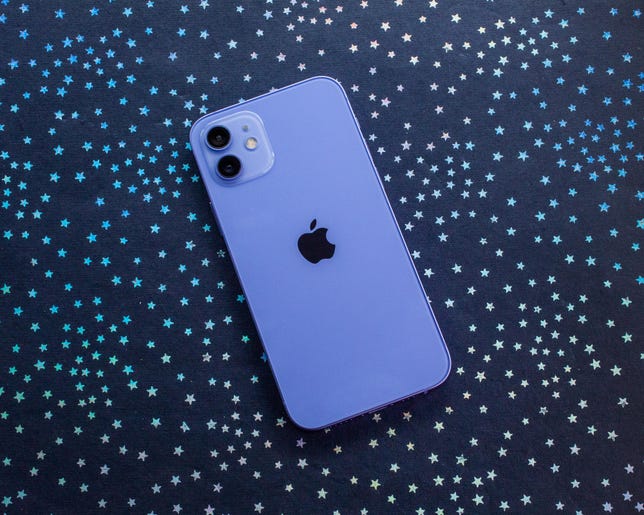
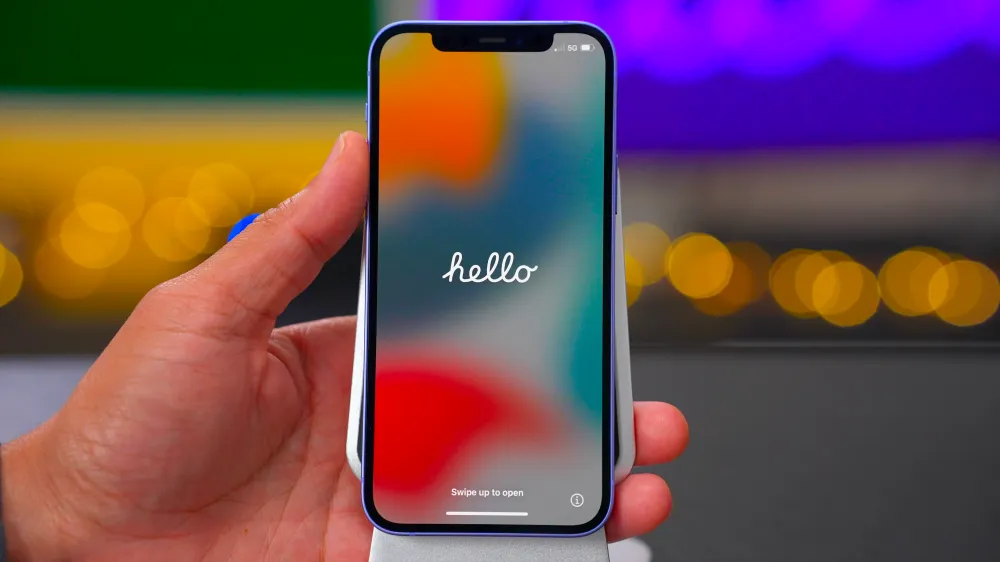
116-iphone-12-purple-2021

The iPhone makes Apple a hard nut to crack.

Sarah Tew/CNET

So Nadella may want to position Windows 11 as the anti-Apple, but Microsoft's influence these days largely extends to the people who already have Windows. And those people will either download the free Windows 11 update when it's released this fall or wait until the IT team at their company lets them.

"Microsoft's only competing against themselves," Kay said. "No one else cares."

And if that isn't enough, Microsoft's building its Teams software into Windows in a way similar to how Apple's used FaceTime with its devices. But it's clear Microsoft wants to carve out its own identity with the way it's opening up Windows.

"We're building for the next decade and beyond," Nadella said in that Windows 11 speech. "This is the first version of a new era of Windows."

And maybe most important to him, it won't be Apple.

Adblock test (Why?)


Windows 11 is the latest shot fired in the growing battle between Microsoft and Apple - CNET
Read More

Google Seems to Be Closing the Borders on Its Play Store - Gizmodo

A doodle of an Android robot with the .aab file extension written below it
The new Android App Bundles will have a .aab file extension.
Image: Google

Google will start imposing a change that would clamp down on the Android apps distributed through the Play Store. This week, the company announced that beginning in August, developers will have to publish apps as a proprietary Android App Bundle rather than the standard APK publishing format.

The requirement only applies to new apps, however. Existing apps are currently exempt, as well as private apps published to “managed Google Play users,” wrote Google in its blog. Developers have about a month to reconfigure their apps to the Android App Package, or .aab file extension.

Google originally introduced the Android App Package in Android 9 to help alleviate the bloat associated with app distribution. There are so many different hardware and language combinations within the device ecosystem that shipping code to accommodate it can lead to hefty apps. A high-end flagship device doesn’t usually have an issue parsing through all that. But low-budget and mid-range devices struggle to sort through large amounts of data due to their limited processing power and they have limited storage space.

The Android App bundle essentially splits the APKs from an archived file that contains it all into a mass of “Split APKs” installed individually by the Google Play Store, depending on the corresponding device. Ars Technica has a nice breakdown of how Split APKs work with different configurations:

As the name suggests, these “Split APKs” aren’t entire apps. They’re parts of an app, each targeting a specific area of change, that combine to form the final app. With App Bundles, if you have a high-resolution, ARMv8 device with a locale set to English with App Bundles, the Play Store will spit out a set of Split APKs that supports only that device type. If your friend has a low-resolution ARM v7 phone set for English and Hindi, they’ll get another set of APK that supports exactly that. Google Play can generate bespoke APKs for every user, giving them only the code they need and nothing more.

The result of Split APKs is apps that are, on average, 15 percent smaller than the standard app package. Developers can even modularize different features in their apps, so they’re installed only when applicable and available to use.

There is a caveat, as there always is when a technology company starts to clamp down on how it distributes software. Since this is Google’s way of vetting apps before installation, it has to go through the Play Store to be unbundled. App bundles are based on an open-source format, but they rely on cloud power to manage all the app signing requirements needed to verify on the back-end. Small-time app stores don’t have that kind of money or firepower, so this makes Google’s offerings the status quo.

To put it simply, Android App Bundles will give Google more power over the apps it hosts in the Play Store. That’s fine for your everyday, run-of-the-mill Android user, who can rest easy knowing their apps are lighter and externally verified through Google. But for folks with a knack for sideloading and going against the grain, so to speak, it’s likely to get annoying, especially if you’re using a third party that doesn’t have the necessary signing keys.

It’s also a wonder how this will work within platforms like Windows 11, which will distribute Android apps through Amazon’s store and allow sideloading of APKs. If developers release only .aab files moving forward, then the APKs published may only contain parts of the app needed to run it. Not to mention, Amazon doesn’t support that file type, so will those apps even show up in the Microsoft Store?

I imagine it might be something like what I encountered when installing app bundles on the Huawei MatePad Pro 12.6, with the help of an app like APKMirror. The tablet uses Android apps, but it runs Huawei’s version of the operating system and doesn’t have any Google Play Services access. I was able to sideload APK files successfully. But anything packaged as an app bundle would return an error message. I’m still figuring out how to get around that.

When this new requirement goes live, the mass of app bundles will help ensure a safer and better functioning Android device for those who use their smartphones and tablets as Google intended. It would also help save Google some bandwidth since it wouldn’t constantly be pulling down heavy amounts of data any time a user installs a new app. But it’s a wonder how it will affect the rest of the ecosystem, which has long prided itself on its openness to all.

Adblock test (Why?)


Google Seems to Be Closing the Borders on Its Play Store - Gizmodo
Read More

Poll: Are you installing the iOS 15, iPadOS 15, watchOS 8, macOS Monterey, or tvOS 15 public betas? - 9to5Mac

Apple this week released the first public betas of its upcoming operating systems iOS 15, iPadOS 15, watchOS 8, macOS Monterey, and tvOS 15. Are you planning to test these new systems?

Last week, Apple released beta 2 of iOS 15, iPadOS 15, and watchOS 8 for developers. Now, the same build has been available to the public to test it out.

It’s still unclear whether, going forward, Apple will release public betas a few hours after developer betas, the following day, or even the next week. Apple has seeded its upcoming operating system through the Beta Software Program for a few years now.

Although it’s a great opportunity for those who want to try the new functions of the operating system before its final release, betas in general usually have a lot of bugs, apps crashing, and battery draining super fast, so it’s not suggested for the average user to install them in his main devices.

iOS 15 brings a handful of new features with SharePlay, improvements in FaceTime, Messages, and even a redesigned Weather app. One of the best functions is called “Focus,” which helps users focus on what matters the most depending on their tasks. Learn more about iOS 15 here.

iPadOS 15 on the other hand finally brings the App Library and widgets to the Home Screen. It’s also easier to use Split View and Slide Over in iPadOS 15. You can learn more about iPad’s upcoming operating system here.

watchOS 8, for example, focuses more than ever on the user’s well-being. With a new Mindfulness app, the Watch reminds you to take some time to breathe and think about your day. It also receives a new Find My app with Items support, a Focus section, and a new Portraits Watch Face. Learn more about watchOS 8 here.

Lesser promoted, tvOS 15 public beta is also available, and you can learn more about it here.

On the 1st of July, Apple also released the public beta of macOS Monterey. With a redesigned Safari and focus on privacy, you can learn more about it here.

Are you installing any of the new public betas? Vote in the poll and tell us in the comment section below.

Check out 9to5Mac on YouTube for more Apple news:

Adblock test (Why?)


Poll: Are you installing the iOS 15, iPadOS 15, watchOS 8, macOS Monterey, or tvOS 15 public betas? - 9to5Mac
Read More

Apps with 5.8 million Google Play downloads stole users’ Facebook passwords - Ars Technica

Apps with 5.8 million Google Play downloads stole users’ Facebook passwords
Mateusz Slodkowski/SOPA Images/LightRocket via Getty Images

Google has given the boot to nine Android apps downloaded more than 5.8 million times from the company's Play marketplace after researchers said these apps used a sneaky way to steal users' Facebook login credentials.

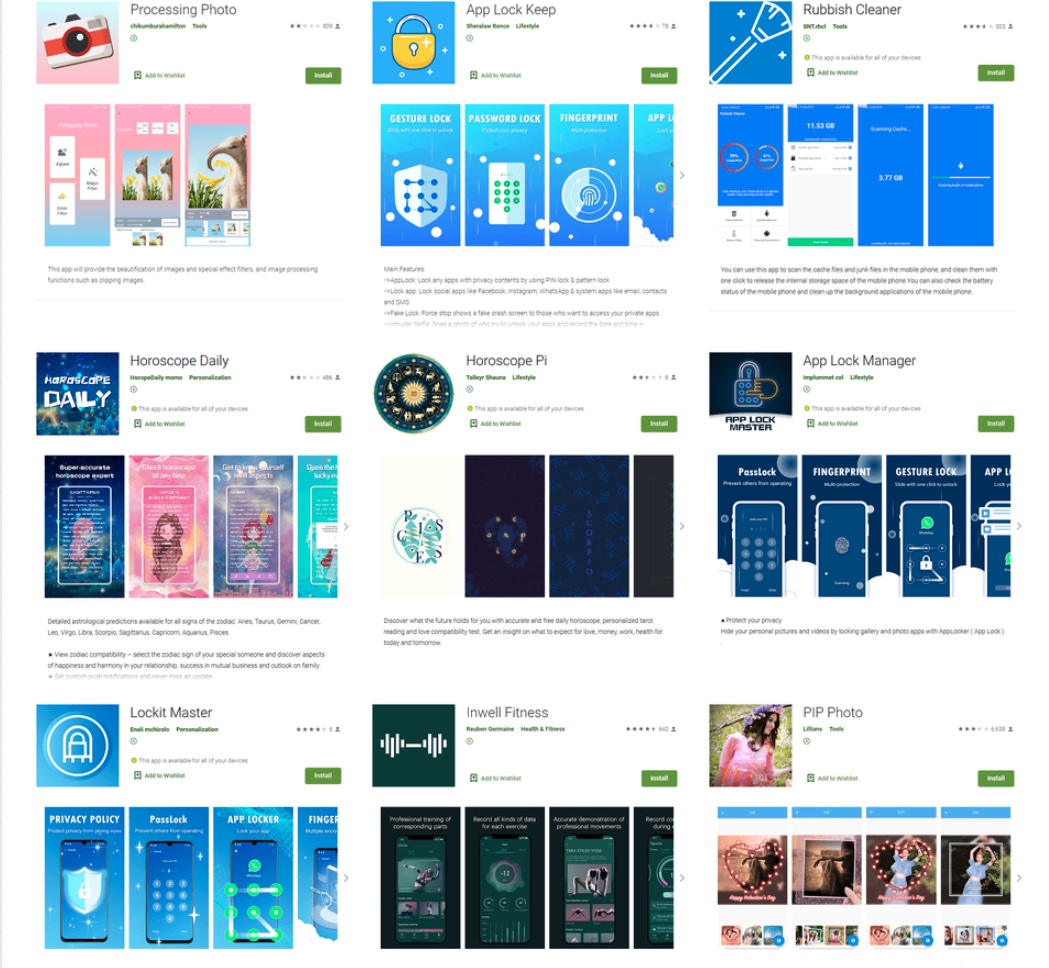
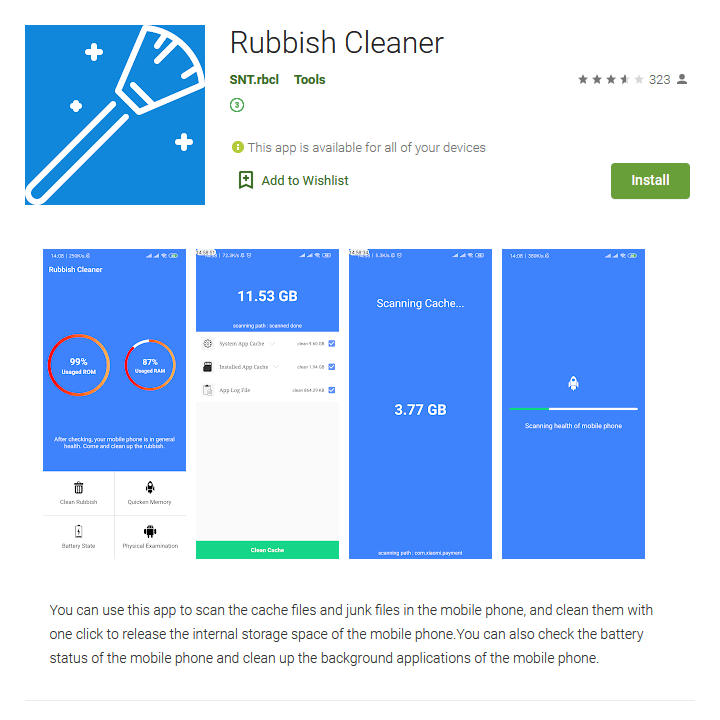
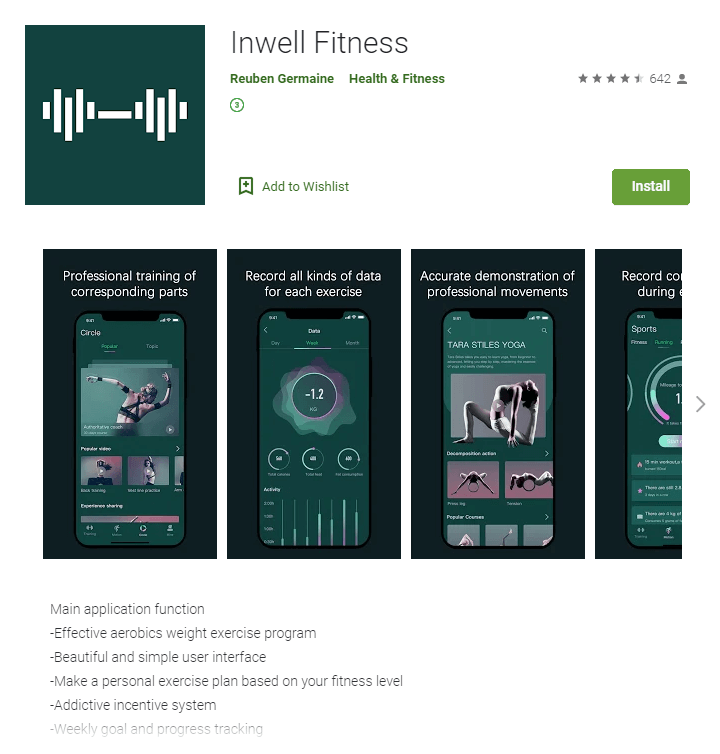
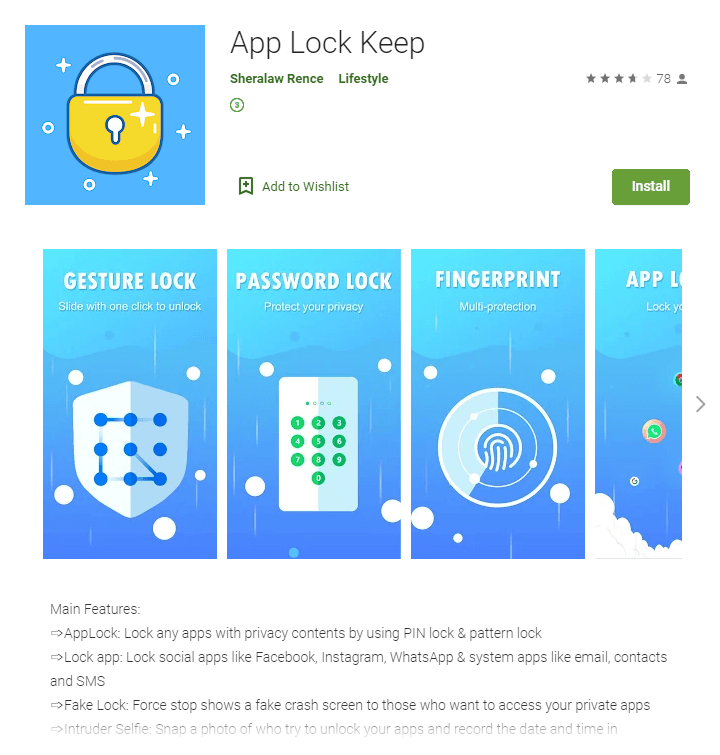
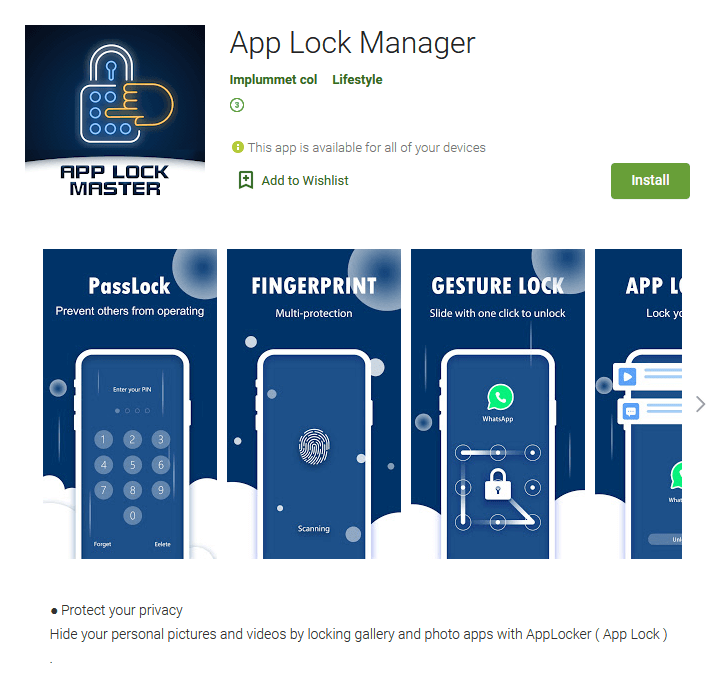
In a bid to win users’ trust and lower their guard, the apps provided fully functioning services for photo editing and framing, exercise and training, horoscopes, and removal of junk files from Android devices, according to a post published by security firm Dr. Web. All of the identified apps offered users an option to disable in-app ads by logging into their Facebook accounts. Users who chose the option saw a genuine Facebook login form containing fields for entering usernames and passwords.

Then, as Dr. Web researchers wrote:

These trojans used a special mechanism to trick their victims. After receiving the necessary settings from one of the C&C servers upon launch, they loaded the legitimate Facebook web page https://ift.tt/2UiSTbY into WebView. Next, they loaded JavaScript received from the C&C server into the same WebView. This script was directly used to hijack the entered login credentials. After that, this JavaScript, using the methods provided through the JavascriptInterface annotation, passed stolen login and password to the trojan applications, which then transferred the data to the attackers’ C&C server. After the victim logged into their account, the trojans also stole cookies from the current authorization session. Those cookies were also sent to cybercriminals.

Analysis of the malicious programs showed that they all received settings for stealing logins and passwords of Facebook accounts. However, the attackers could have easily changed the trojans’ settings and commanded them to load the web page of another legitimate service. They could have even used a completely fake login form located on a phishing site. Thus, the trojans could have been used to steal logins and passwords from any service.

Dr. Web

The researchers identified five malware variants stashed inside the apps. Three of them were native Android apps, and the remaining two used Google’s Flutter framework, which is designed for cross-platform compatibility. Dr. Web said that it classifies all of them as the same trojan because they use identical configuration file formats and identical JavaScript code to steal user data.

Dr. Web identified the variants as:

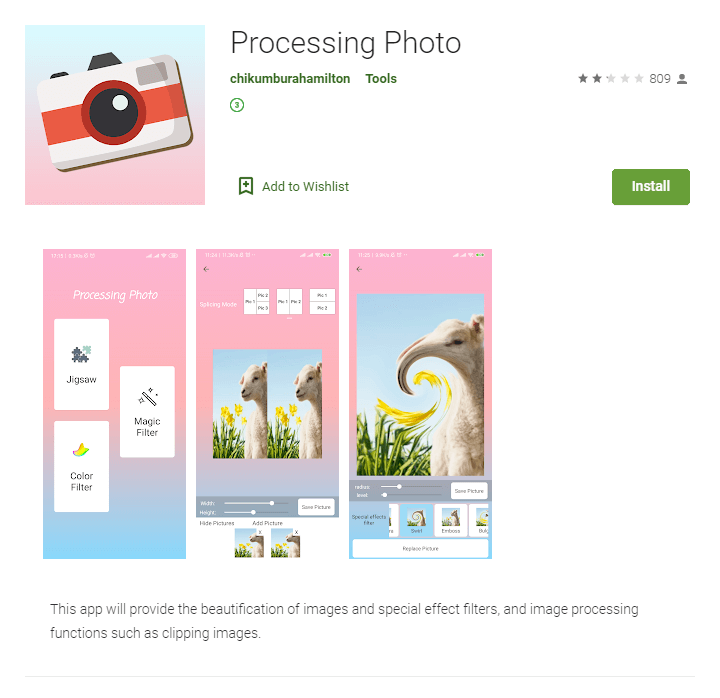
The majority of the downloads were for an app called PIP Photo, which was accessed more than 5.8 million times. The app with the next greatest reach was Processing Photo, with more than 500,000 downloads. The remaining apps were:

A search of Google Play shows that all apps have been removed from Play. A Google spokesman said that the company has also banned the developers of all nine apps from the store, meaning they will not be allowed to submit new apps. That’s the right thing for Google to do, but it nonetheless poses only a minimal hurdle for the developers because they can simply sign up for a new developer account under a different name for a one-time fee of $25.

Anyone who has downloaded one of the above apps should thoroughly examine their device and their Facebook accounts for any signs of compromise. Downloading a free Android antivirus app from a known security firm and scanning for additional malicious apps isn’t a bad idea, either. The offering from Malwarebytes is my favorite.

Adblock test (Why?)


Apps with 5.8 million Google Play downloads stole users’ Facebook passwords - Ars Technica
Read More

This PC can't run Windows 11: How to fix the problem with TPM and Secure Boot - CNET

Windows 11 update on a laptop

If you saw that your PC is not compatible with Windows 11, it may be because your system doesn't have two security settings turned on, Secure Boot and TPM 2.0. Here's how to do it.

Sarah Tew/CNET

New system requirements for the recently announced Windows 11 may create a range of problems for people looking to upgrade to Microsoft's new operating system on their current PC (here's how to download Windows 11). If you've tried installing Windows 11 Insider Preview or using the now-disabled Microsoft PC Health Checker app, and were greeted with an error message reading "This PC can't run Windows 11," it may be because your system doesn't have two security settings turned on, Secure Boot and TPM 2.0. Both these features have been built into many modern computers and processing chips from Intel and AMD, and are now required for all machines running Windows 11. 

If your machine is new enough to support both, enabling TPM (short for Trusted Platform Module) and Secure Boot is often quite easy. No special skills are needed, and you'll just be clicking through menus. If you've never heard the words "BIOS menu" you might feel out of your element, but don't be intimidated. With a little patience, any first-timer can do this.  

Here's what you need to know. 

What are TPM and Secure Boot? 

TPM microchips are small devices known as secure cryptoprocessors. Some TPMs are virtual or firmware varieties but, as a chip, a TPM is attached to your motherboard during the build and designed to enhance hardware security during computer startup. A TPM has been a mandatory piece of tech on Windows machines since 2016, so machines older than this may not have the necessary hardware or firmware. Previously, Microsoft required original equipment manufacturers of all models built to run Windows 10 to ensure that the machines were TPM 1.2-capable. TPM 2.0 is the most recent version required.

TPMs are controversial among security specialists and governments. An updated and enabled TPM is a strong preventative against firmware attacks, which have risen steadily and drawn Microsoft's attention. However, it also allows remote attestation (authorized parties can see when you make certain changes to your computer) and may restrict the kinds of software your machine is allowed to run. TPM-equipped machines generally aren't shipped in countries where western encryption is banned. China uses its state-regulated alternative, TCM. In Russia, TPM use is only allowed with permission from the government. 

Secure Boot is a feature in your computer's software that controls which operating systems are allowed to be active on the machine. It's both a good and bad thing for a Windows machine. On the one hand, it can prevent certain classes of invasive malware from taking over your machine and is a core defense against ransomware. 

On the other hand, it can prevent you from being able to install a second operating system on your machine, giving you two to choose from when you first start up your computer. So, if you wanted to experiment with Linux operating systems, for instance, Secure Boot could stop you. Secure Boot also plays a part in preventing Windows pirating. 

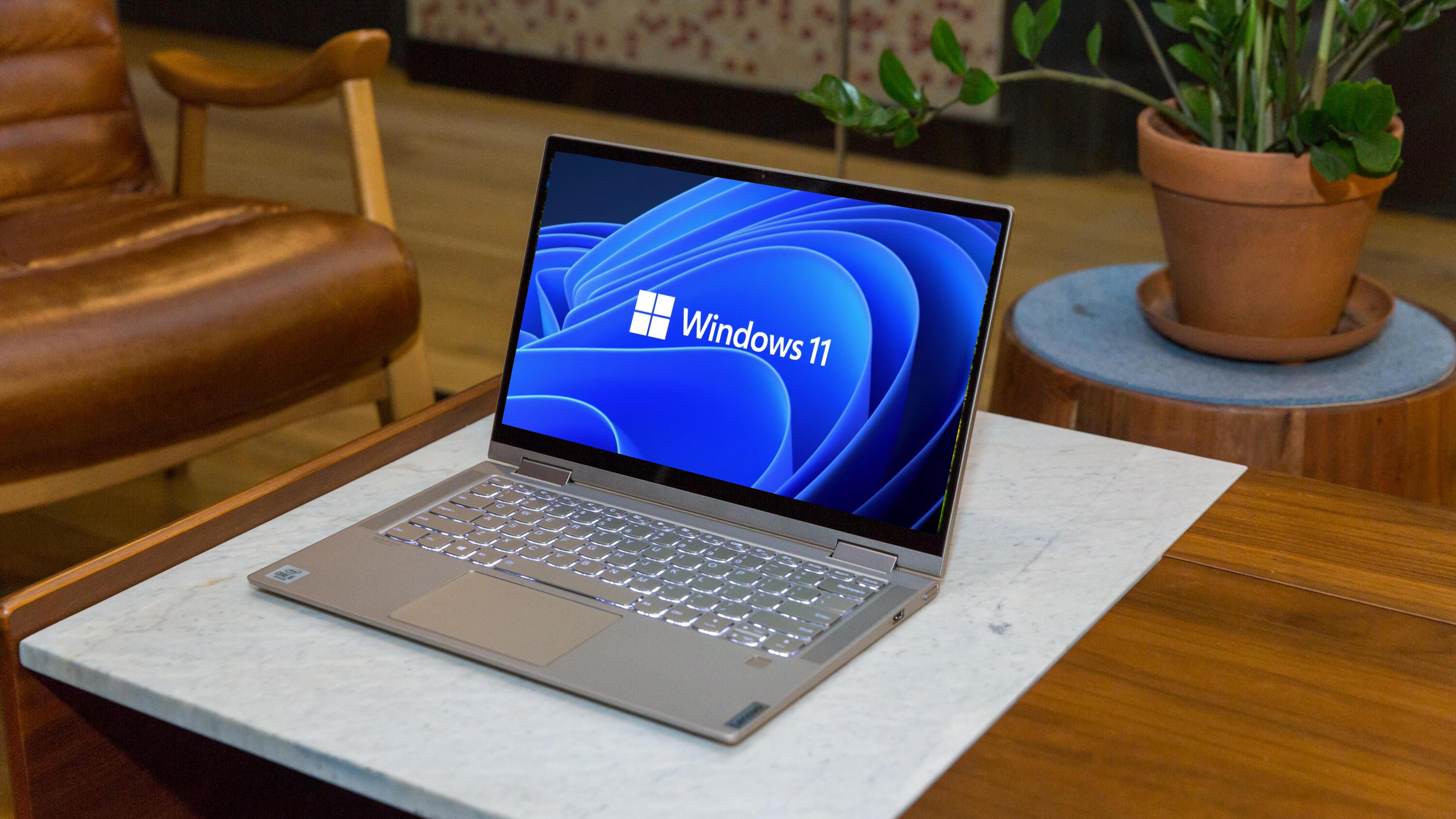
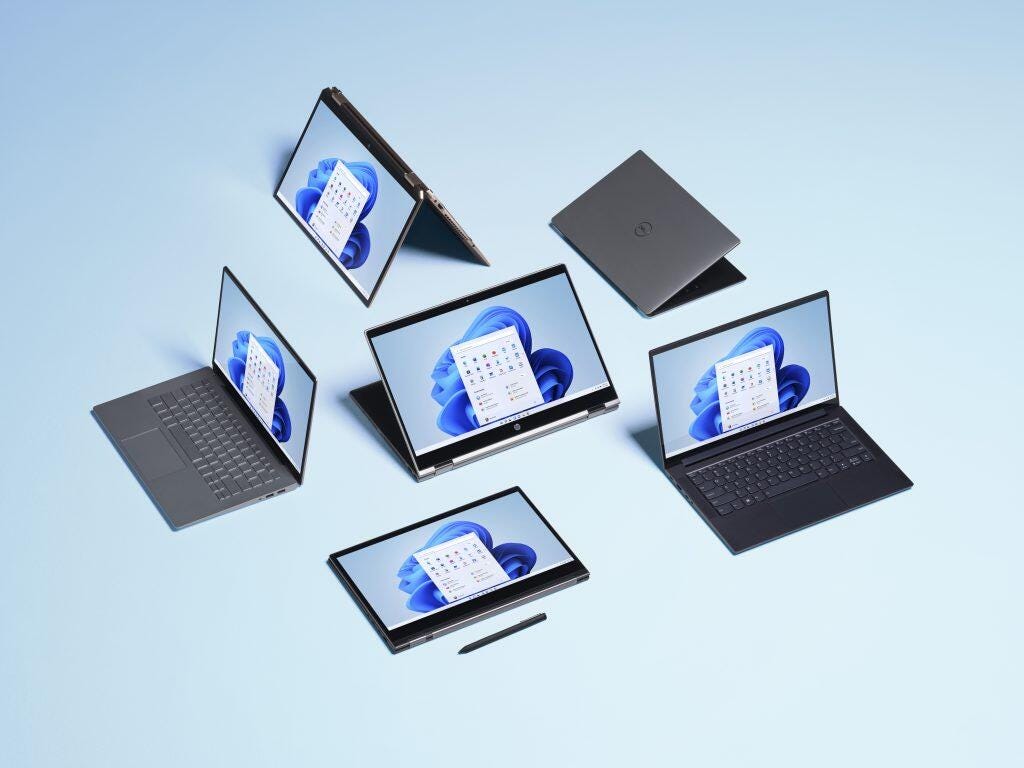
windows-11-laptops

TPM and Secure Boot could be the key to getting your device to run Windows 11.

Microsoft

A few words of caution 

Now that you know about the secure technologies you'll be using, there are a few things you should keep in mind before you dive into fixing the issue on your own. 

  • Microsoft confirmed there are four types of problems that might have given you a "This PC can't run Windows 11" error message if you used its PC Health Check tool (as of Monday, the tool has been temporarily disabled so Microsoft can build in more specific feedback as to why your machine is not compatible. In the meantime, someone built an open-sourced app called WhyNotWin11 that you can find on Github if you're interested). If you were able to use the tool before it went offline and saw that you were missing the hardware or firmware necessary for Windows 11, the instructions below won't help -- you'll need to buy a new device to run the OS.
  • Keep in mind that these instructions are written as broadly as possible. That's because Windows machines vary so much that it's not feasible to cover all the possible ways to enable TPM and Secure Boot across every device. For the most part, though, the process is similar enough across machines that you should be able to use the instructions as a guide and, where your computer differs, still identify the equivalent menu or label in your own system.
  • If your machine is still covered by a warranty, always speak with the manufacturer first before doing anything that could potentially void it. If your machine is owned and maintained by your company or school, it may have a unique security configuration that your IT staff will need to handle. It's also a good idea to get in contact with your local PC repair shop; having a qualified professional on standby is the best way to get back on track if you get turned around or encounter roadblocks.
  • Always back up your important files before making any big changes to your computer. Always. Just do it. You'll thank us later.
  • If this is your first time working in a BIOS menu, stick close to the instructions and don't veer too far from the beaten path. We're on a very simple mission here, and nothing I recommend below will do any damage to your machine or data, but changing firmware settings in your BIOS menu can have a wide-ranging impact. There are few guardrails here, and you can lose a lot of important data very fast. Some mistakes can be permanent and, in most cases, there won't be any polite pop-ups gently asking whether you're sure you want to make those mistakes.

You should definitely look around, explore your options and familiarize yourself with what's under the hood, but avoid changing any settings or saving any of those changes unless you know specifically what's going to happen when you do. 

microsoft-windows-11-announcements-june-24-2021-cnet-023.png

New Windows 11 features include Microsoft Teams integration.

Microsoft/Screenshot by Sarah Tew/CNET

Is my device capable of TPM 2.0 and Secure Boot? 

If the PC Health Checker suggested that TPM isn't enabled, you should first find out whether that's an accurate diagnosis. Here's how. 

1. From your desktop, press the Windows key next to the spacebar + R. This will bring up a dialog box. 

2. In the text field of the box, type tpm.msc and hit Enter. This should bring up a new window labelled "TPM Management on Local Computer." 

3. Click Status. If you see a message that says "The TPM is ready for use" then the PC Health Checker has misdiagnosed you, and the steps below won't help. At this point, there are several reasons you might be receiving the wrong error message from Microsoft, so your best bet is to get a professional to take a look at your machine.

If you don't see that message, and instead see "Compatible TPM cannot be found" or another message indicating the TPM may be disabled, follow the next steps. 

Now playing: Watch this: How to install Windows 11's beta -- and why you probably...

5:11

How do I enable TPM 2.0? 

You're going to need to get to your BIOS menu so you can get to your TPM switch, and there are two ways to do that. We'll cover both here. The first is for much newer PCs, the second method for those a few years older. Regardless of which you choose, though, you're going to need to restart your machine. So save any work and close any open windows or programs before proceeding. 

From Windows 10's Start menu

If you have a newer machine running Windows 10, your boot time may be too fast for you to try the traditional method of hitting a particular key to get to your BIOS menu before Windows can fully load. Here's how to get to it from inside your normal desktop. 

how-to-tech-tips-logo-badge.png
Brett Pearce/CNET

1. Start your computer normally and open the Start menu by clicking on that Windows button on the far left bottom of your screen. Click on the gear-shaped Settings icon on the left side of the menu. 

2. Within the Settings window that appears, click Update & Security. On the left-side pane that appears, click Recovery. Under the Advanced startup header, click Restart now. 

Your computer will immediately restart, and instead of restarting and bringing you to your normal desktop screen, you'll be brought to a blue screen with a few options. 

3. Click Troubleshoot, followed by Advanced options, followed by UEFI Firmware Settings. 

Your device will restart again. 

From here, go to Step 2 in the section below and follow the remaining steps. 

From start-up

You're going to need to move very quickly for Step 1. You'll only have a few seconds to get into the BIOS before your operating system loads. If you miss your window, no harm done, you'll just have to restart the computer and try again. After Step 1, though, feel free to take your sweet time.

1. Restart your computer, and as it's booting up you should see a message telling you to press a certain key to enter the BIOS, whether it uses that word or another. On most Dells, for instance, you should see "Press F2 to enter Setup." Other messages might be "Setup = Del" (meaning Delete) or "System Configuration: F2." Press whatever key the prompt tells you to and enter the Setup menu.

Depending on what kind of computer you have, a different key may be needed to enter your Setup menu. It could be F1, F8, F10, F11, Delete or another key. If there's no message on the screen with instructions, the general rule is to hit the key when you see the manufacturer's logo but before Windows loads. To find out which key will get you in, search online for your laptop's make and model along with the phrase "BIOS key." 

2. In the BIOS or UEFI menu, there should be at least one option or tab labelled Security. Using your keyboard, navigate to it and hit Enter. On some systems, you might need to use the + key to expand a submenu instead. 

3. Once you're inside the Security section, you're going to be looking for the TPM settings. This might be clearly labeled "TPM Device," "TPM Security" or some variation. On Intel machines, it will sometimes be labeled "PTT" or "Intel Trusted Platform Technology." It might also appear as "AMD fTPM Switch." 

Warning: Stay alert here. Within most TPM settings menus, you generally have an option to clear your TPM, update it or restore it to factory default. Do not do that right now. Clearing the TPM will cause you to lose all data encrypted by the TPM and all keys to the encryption. This action can not be undone or reversed. 

4. From inside the TPM settings menu, you're on one mission only: Find the switch that turns on the TPM. You're not touching anything else. Look through the options inside this menu for one that shows some form of toggle or switch beside the word "Enable" or "Unavailable" or even just "Off." Use your arrow keys to flip that toggle or switch.   

5. Once you've kicked on the TPM, look around the screen for Save. Once you've saved this setting, restart the computer. 

windows-11-focus.png
Microsoft

How do I enable Secure Boot? 

You'll save yourself a headache if you keep one thing in mind about enabling Secure Boot. Sometimes after you enable Secure Boot on a machine that's running software incompatible with Secure Boot, the machine will refuse to load Windows properly on restart. If that happens, don't panic. You didn't break anything. 

No matter which method you've used to get to the boot menu to begin with -- either via Windows 10's Start menu, or by the traditional method of hitting a specific key during start-up -- you can still use the traditional method to get back to the boot menu and disable Secure Boot again. 

From Windows 10's Start menu

Follow the steps above to access the UEFI Firmware Settings. 

1. Once you're in the UEFI, you're going to be looking for the Secure Boot setting. There are a few possible places this could be -- check under any tabs labelled Boot, Security or Authentication. 

2. Once you've checked the tabs and found the Secure Boot setting, toggle the switch beside it to turn it on or enable it. 

3. Find your Save feature and, after you've saved your changes and exited the menu, your computer should reboot and bring you back to a normal Windows desktop. 

There are some PCs on which you may not be able to readily find the Secure Boot setting. Some computers will load Secure Boot keys under a Custom tab. Some computers won't allow you to enable Secure Boot until certain factory settings are restored. If you're unable to access Secure Boot, or get roadblocked here, it's best to get help from a professional rather than take chances. 

From start-up

If you're not working with UEFI, then you should be able to just enable Secure Boot in BIOS. 

1. Just as you did when enabling your TPM, hit F2 (or whichever key your manufacturer specifies) as your computer is booting up and enter the BIOS menu.  

2. Go to the tab or option that says BIOS Setup, and then select Advanced. 

3. Next, select Boot Options and a list of them should appear. 

4. In that list, find Secure Boot. Enable it. 

5. Hit Save, exit the menu system, and restart your computer if it does not restart automatically. 

Now playing: Watch this: Windows 11: Top new features in 2021

3:22

What if I don't have a TPM chip? 

As noted by CNET sister publication ZDNet back in 2017, motherboard manufacturers sometimes skimp on installing the actual TPM chip and instead send the boards out with only the part that allows the chip to connect to the board. If you find out that you were shorted on your TPM chip when you bought your PC, and you don't have a virtual or firmware TPM version, you still have a few options. 

Your first option is to try to return your machine via your manufacturer warranty. That is, of course, assuming your machine's manufacturer is willing to install the chip it already sold you, or replace your model with one that has a chip. Your second, and most expensive, option is to simply buy a newer machine after verifying that it does, indeed, have an actual TPM 2.0-capable chip. 

If your warranty is already voided, your third option -- less expensive, but perhaps more difficult -- is to buy a whole new motherboard with a TPM 2.0 chip installed, then either swap out the boards yourself or have your local aftermarket repair shop handle the job. Be warned, however, that the ongoing global chip shortage has squeezed the world's supply of motherboards, making them more difficult to find and pushing prices to upward of $300 to $400 dollars for some brands. That's another place your local repair shop may be able to help. 

Finally, either you or your repair shop can try your fourth option: hunting down a TPM chip with the right specifications for your motherboard and installing it. Depending on the type you go with and where you get it from, a TPM 2.0-capable chip can run you anywhere from $70 up. Luckily, the basic structures of the boards and chips are similar enough that -- if you'd like to get your hands dirty under the hood -- it's possible to install a TPM chip yourself. ZDNet has step-by-step instructions (with a helpful gallery of pictures to guide you).

Whichever route you go, we strongly advise you to first consult either your manufacturer or a device repair specialist before you try to take apart your machine. Spending a few moments with a knowledgeable professional could be all it takes to turn your upgrade nightmare into a quick fix, and spare you excessive replacement costs.  

For more, check out how to download Windows 11, and the best new Windows 11 features and how to use them. 

Adblock test (Why?)


This PC can't run Windows 11: How to fix the problem with TPM and Secure Boot - CNET
Read More
Friday, July 2, 2021

iPadOS 15 beta preview: Widgets and Quick Notes make for a new experience - Engadget

iPadOS 15 is arriving at a crucial time for the iPad. Ever since the well-designed and overly powerful 2018 iPad Pro arrived, people have increasingly asked Apple to make its tablet software as flexible and impressive as its hardware. This year’s iPadOS update isn’t going to satisfy those who want the iPad to work more like a Mac — it still feels like an iPad, for better or worse.

That said, Apple has made a handful of significant changes and a host of smaller ones, all of which add up to an experience that makes the iPad more customizable and flexible than before while still retaining (and improving upon) the basic iPad experience. There are a lot of new features to unpack, and the just-released iPadOS 15 public beta is still a work in progress, but here are some of the most significant changes to look forward to when the final software arrives this fall.

Should you install iPadOS 15?

But first, a note about that beta status. Apple’s public betas are generally pretty reliable, and that’s true here, too. I’ve generally been able to use my 11-inch iPad Pro without any issues, but apps occasionally crash and throw me to the Home Screen; interacting with notifications doesn’t always work; and there are various other hiccups here and there. (Examples: my cursor doesn’t always move to the search field when I summon it, and the last few letters of my messages are sometimes cut off when using the app in Slide Over.) It’s nothing deal-breaking, but it’s noticeable, particularly when I use my iPad for multiple hours at a time. Unless you're extremely curious, I'd wait for a few more beta versions to be released before giving it a shot, unless you can put it on a back-up iPad.

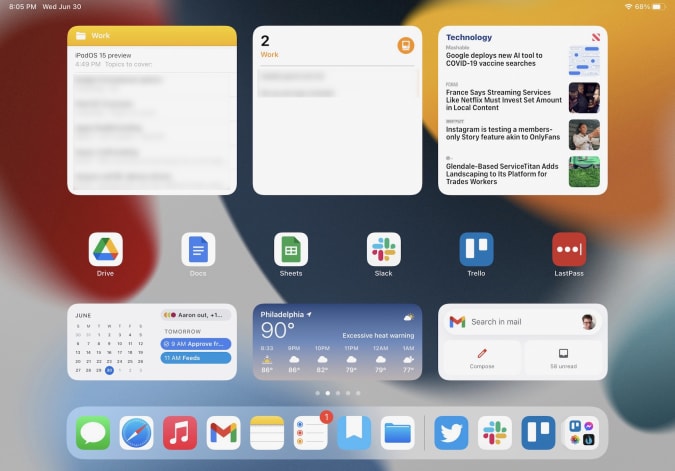
With that out of the way, let’s dig into the new features. The most obvious change in iPadOS 15 is that widgets have come to the Home Screen. As with last year’s iOS 14, iPad users can now pin widgets anywhere they want. You can also select which apps you want to show on the Home Screen and stash the rest in the App Library, an auto-organized place to find everything you’ve installed on your iPad. Both widgets and the App Library came to the iPhone last year, and it was surprising that they didn’t arrive on the iPad until now.

iPadOS 15
My "work" home screen.

I’m glad Apple did this, because it makes your iPad’s home screens far more customizable than before, something sorely needed on a big-screen device. It took a little work, but I’ve now hidden the apps I don’t use as much in the App Library and now have five home screens curated for work, entertainment, games and so forth. For example, my work screen only has six app shortcuts (Drive, Docs, Sheet, Trello, Slack and LastPass), but the variety of widgets I have installed provides glanceable info and easy access to a lot of tools. I have a widget showing recent notes in the “work” folder, another with Reminders (also specifically from my work group), an Apple News widget showing the latest tech news, and widgets for Google Calendar and Gmail. All that, plus the apps in my dock, make this the prime place to go when I need to get things done.

Quick Notes

The other new feature that could fundamentally change the iPad experience is Quick Notes. As Apple’s Craig Federighi said during last month's WWDC keynote, Notes are now a “system-wide” feature. Swiping in from the lower right corner summons a new note that floats above whatever apps you’re using. You can quickly type or write down (with the Apple Pencil) whatever comes to mind and then swipe the note away when you’re done. Depending on your settings, you can start a new note every time you access Quick Notes, or just keep adding to the same one. Finally, you can swipe between Quick Notes you’ve started if you want to get to a specific document.

iPadOS 15 Quick Notes
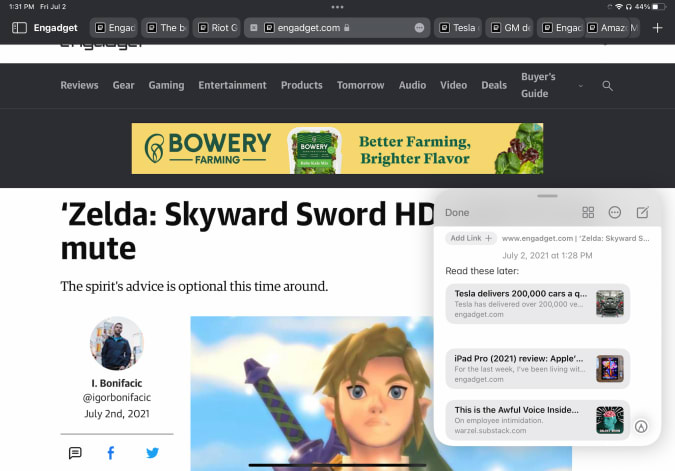
At the top of this Quick Note is a button that automatically appears to let you save a link to the page you're visiting.

The iPad’s Slide Over multitasking feature offered an approximation of this experience, but Quick Notes is far more flexible. For starters, you can move a Quick Note anywhere on the screen you want, making it feel like a true “window” reminiscent of something you would use on Windows or macOS. If you’re going to jump in and out of the same note frequently, you can dismiss it to the side of the iPad screen where a little arrow shows that you can summon it back quickly.

Apple’s Quick Note demos mostly focused on using the Apple Pencil to quickly jot things down, but it works just as well with a keyboard. When I’m doing work, it’s almost always with the Magic Keyboard attached, and being able to quickly summon a persistent document to take notes in, regardless of what else I was doing, makes the iPad feel significantly more versatile. It’s a great tool when doing research, especially since you can add links to web pages in Safari or destinations in Maps with one tap. My only real complaint is that the “swipe in from the bottom right” gesture is a little awkward, especially when using the iPad docked to a keyboard. It’s much with the Apple Pencil.

Multitasking

Multitasking was a major focus at WWDC, as well. While Apple did make some useful changes here, the fundamental iPad multitasking experience is still the same. Apps can take up the whole screen, or share the display with a second app in Split View. There’s also the Slide Over area, which lets you quickly summon a floating window containing another app. Apple has made major improvements to these features over the years, but they’re the same fundamental multitasking options we’ve had since iOS 9 back in 2015.

iPadOS 15 multitasking menu
The tiny multitasking menu can be handy, once you know how to use it.

If you’ve been hoping for a true windowed multitasking experience, this isn’t it. But Apple has made it easier to work with the multitasking features it does offer. Now, there’s a tiny three-dot menu at the top of every app you use that lets you move the app between full screen, slide over and split view. As I compose this sentence, I’m typing in the Notes app, full screen. If I want to take Notes into Split View and share the screen with Safari, I just tap the multitasking menu and hit the Split View icon. This gives me a full view of my Home Screen, which then lets me pick anything I want to go alongside Notes.

Being able to quickly choose from any app on your Home Screen when setting up a multitasking view is a big improvement; before, you primarily had to use search to find the app you want, or drag one of the apps available in your dock. The menu also makes it a lot easier to move apps between Split View, Slide Over and full-screen views. Previously, you had to be aware of a variety of gestures, but a few minutes of playing with the multitasking menu makes the behavior pretty clear.

Safari

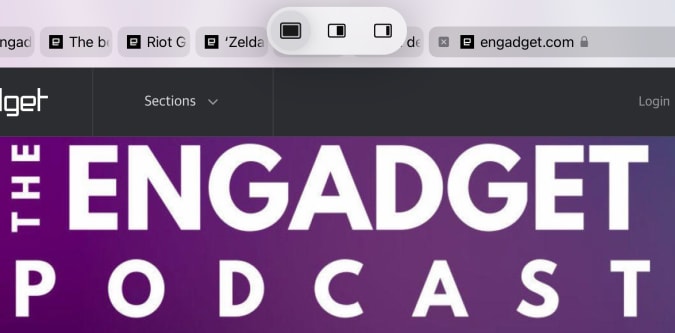
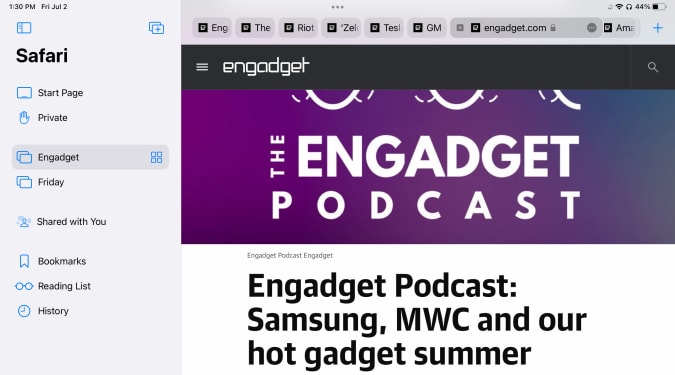
The last major change I’ll cover at this early stage is Safari. It’s one of the most important apps on the iPad, and it’s gotten a lot better in the last few years. But for iPadOS 15, Apple has made what I predict will be a polarizing design decision. In an effort to slim down the top menu bar, Apple crammed the URL bar and open tabs into one row. Essentially, a tab and its URL bar are now represented by a single visual cue.

This means that the location of the URL bar moves. If you’re looking at the right-most tab you have open, for instance, the URL bar is all the way to the right. It definitely takes some time to get used to, since most of us are used to it always being right in the center of whatever browser we’re using. This also makes it harder to see all your tabs; besides the “active” tab, I can currently see eight others. The rest are hidden off to the left and right of my active tab. To see them, you’ll have to scroll either direction to find what you’re looking for.

iPadOS 15 Safari menu bar
Because my active tab is the one furthest to the right, the URL bar in my window is also far to the right.
iPadOS 15 Safari menu bar
In this case, my active tab is to the far left, and so is the URL bar.

Apple’s menu bar cleanup also means it removed the button that zooms out to show you a preview of every tab you have open. I used that constantly, so I hate this change. And unlike on the Mac, you can’t customize the Safari menu on the iPad at all. Now, you either have to use a keyboard shortcut or pull up the new sidebar, which contains all the open tabs in a window along with your bookmarks, reading list, history and links shared in Messages.

Safari on the iPad already did a great job of hiding the menu bar once you started scrolling through a site, so this change feels unnecessary to me. I’ll be curious to see what kind of feedback Apple gets during the beta, because I wager plenty of other people will prefer the old layout.

iPadOS 15 Safari sidebar
Safari's new sidebar holds your tab groups as well as usual items like bookmarks and your reading list.

There is at least one good thing about the new Safari: tab groups. They’re handled elegantly, with a button in the sidebar letting you open either a new “blank” group for you to populate or taking all your current tabs and saving them as a group. You can swap between groups in the sidebar, and access any groups you’ve created in any open Safari window you have. Groups will also sync across your other devices, assuming you’ve upgraded to iOS 15 or macOS Monterey. Having different tab groups for different tasks has already proven useful to me, and I’ll probably use them even more as I get used to incorporating them into my workflow.

More to come

There are plenty of other significant changes to iPadOS 15, things like the new Focus system and notifications revamp, improvements to FaceTime and Messages, the new Universal Control system that works between a Mac, iPhone andiPad, and plenty more. (You can read about some of these changes in our previews of iOS 15 and macOS Monterey.) We’ll be doing a proper review of all the new software in its final form this fall, but in the meantime I’m going to keep digging into the future beta releases to see how iPadOS 15 changes between now and its wider release.

All products recommended by Engadget are selected by our editorial team, independent of our parent company. Some of our stories include affiliate links. If you buy something through one of these links, we may earn an affiliate commission.

Adblock test (Why?)


iPadOS 15 beta preview: Widgets and Quick Notes make for a new experience - Engadget
Read More
Mysterious Icon Shows Up on CarPlay, It's Actually a New Feature - autoevolution

[unable to retrieve full-text content]

Mysterious Icon Shows Up on CarPlay, It's Actually a New Feature  autoevolution
Mysterious Icon Shows Up on CarPlay, It's Actually a New Feature - autoevolution
Read More

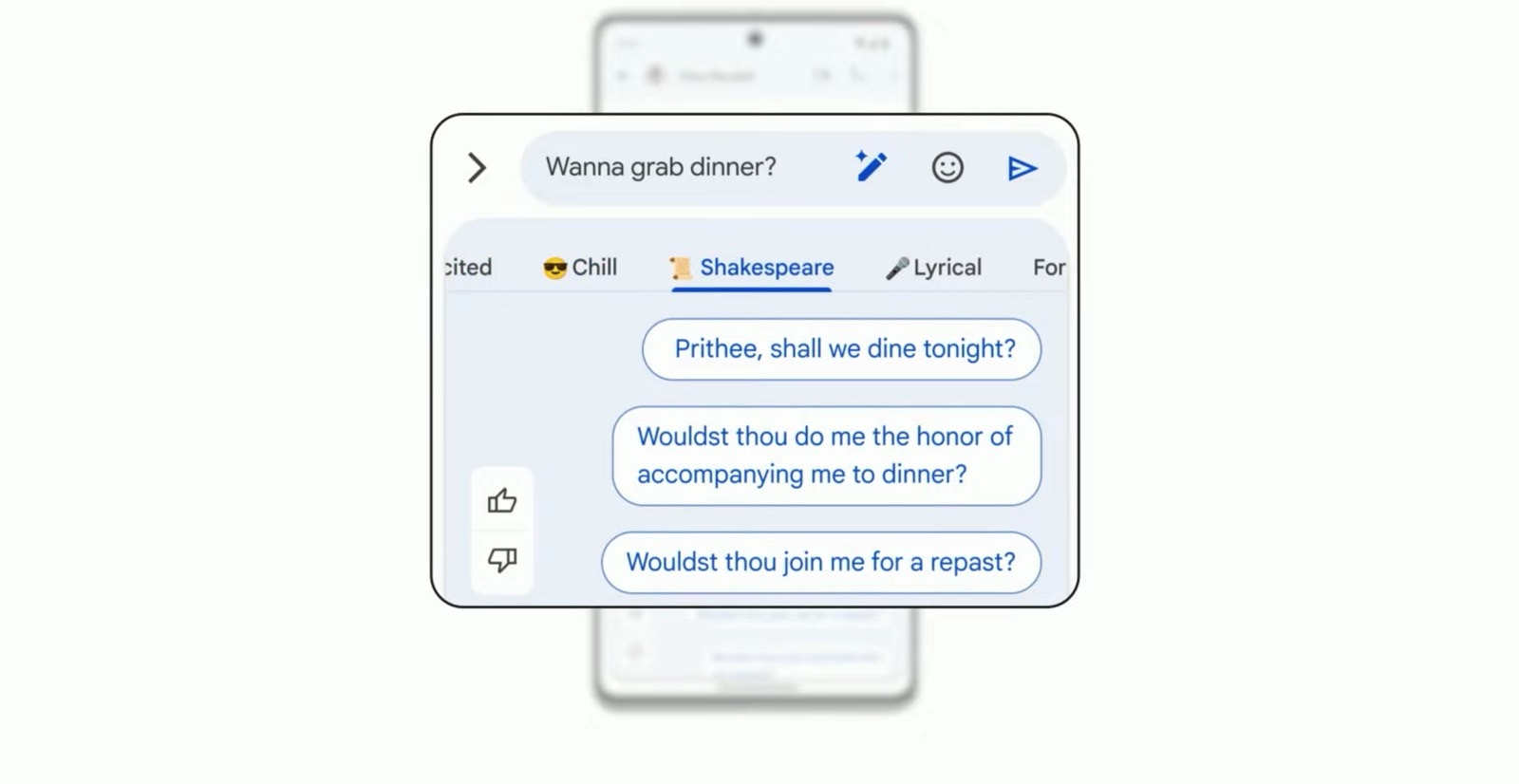
Google's encryption-breaking Magic Compose AI proves iPhone shouldn't support RCS messaging - BGR

For years, Google has been dying to come up with an iMessage equivalent, a key iPhone feature that’s probably responsible for stealing plent...